
Service accounts
A service account is a technical member of your organization. It lets a server call Nebulas as itself, with no person signing in. The most common use is a chatbot or a contact form on a public website built with Nebulas Kit: your server signs a short-lived token with a private key, and Nebulas checks it against the public key registered on the service account.
Service accounts are managed by the organization owner, from Admin.
Open the service accounts
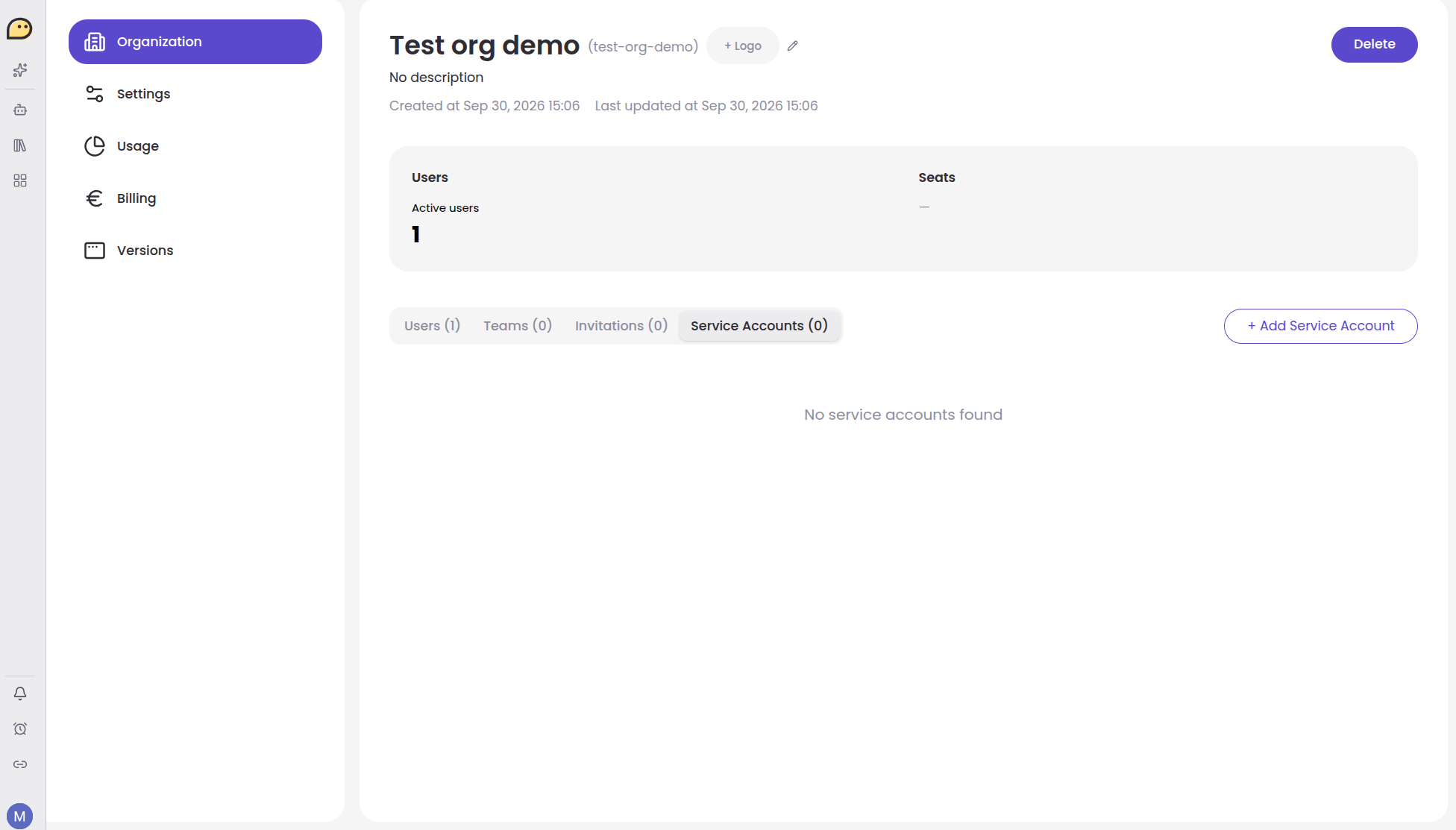
Section titled “Open the service accounts”In Admin, open Organization, then the Service Accounts tab. It lists the organization’s service accounts with their ID, email, role and number of active keys.
Create a service account
Section titled “Create a service account”Click + Add Service Account.
-
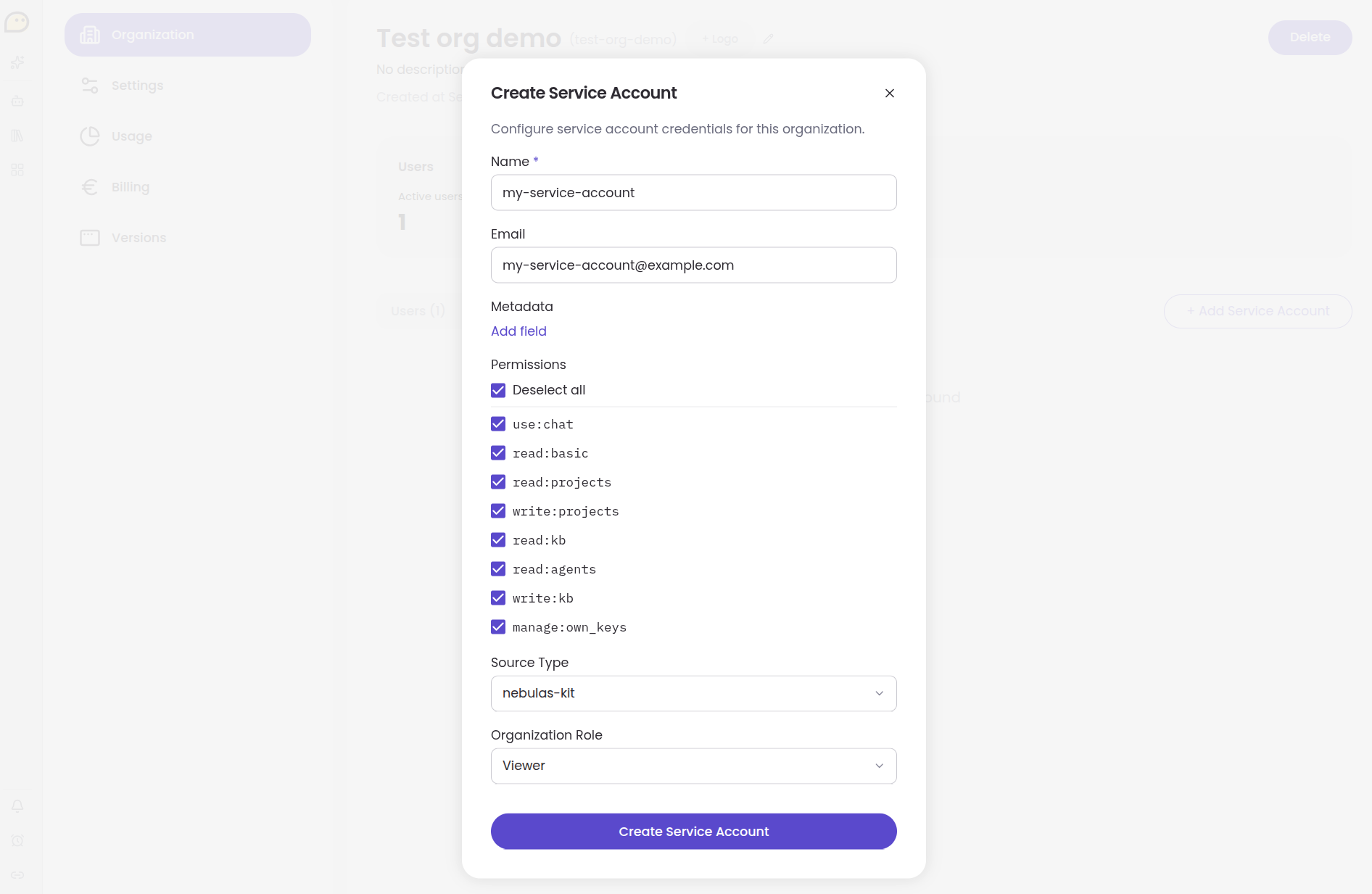
Name (required). A name that says what uses the account, such as
website-chatbot. -
Email. An address that identifies the account, for example
website-chatbot@your-company.com. It is shown in member lists when you share resources with the account. -
Metadata (optional). Click Add field to store key/value pairs on the account, such as the application or the environment it belongs to.
-
Permissions. What the account is allowed to do. All are selected by default. Keep only those your application needs:
Permission Allows use:chatChatting with assistants. read:basicReading basic account and organization information. read:projectsReading workspaces. write:projectsCreating and updating workspaces. read:kbReading knowledge bases. write:kbAdding to and updating knowledge bases. read:agentsReading assistants. manage:own_keysManaging the account’s own signing keys. -
Source Type. Where the account’s tokens come from:
nebulas-kitfor a website or server built with Nebulas Kit that signs its own tokens.entrafor an application registered in Microsoft Entra ID.
-
Organization Role. Viewer or Editor. Nebulas takes the account’s organization from this role. Prefer Viewer unless the account has to create or change resources.
-
Click Create Service Account.
The account now appears in the list. Use the copy button next to its ID:
this is the SERVICE_ACCOUNT_ID your server needs.
Register a signing key
Section titled “Register a signing key”The service account trusts tokens signed by the private keys whose public keys are registered on it. Generate a key pair on your side, and keep the private key on your server only:
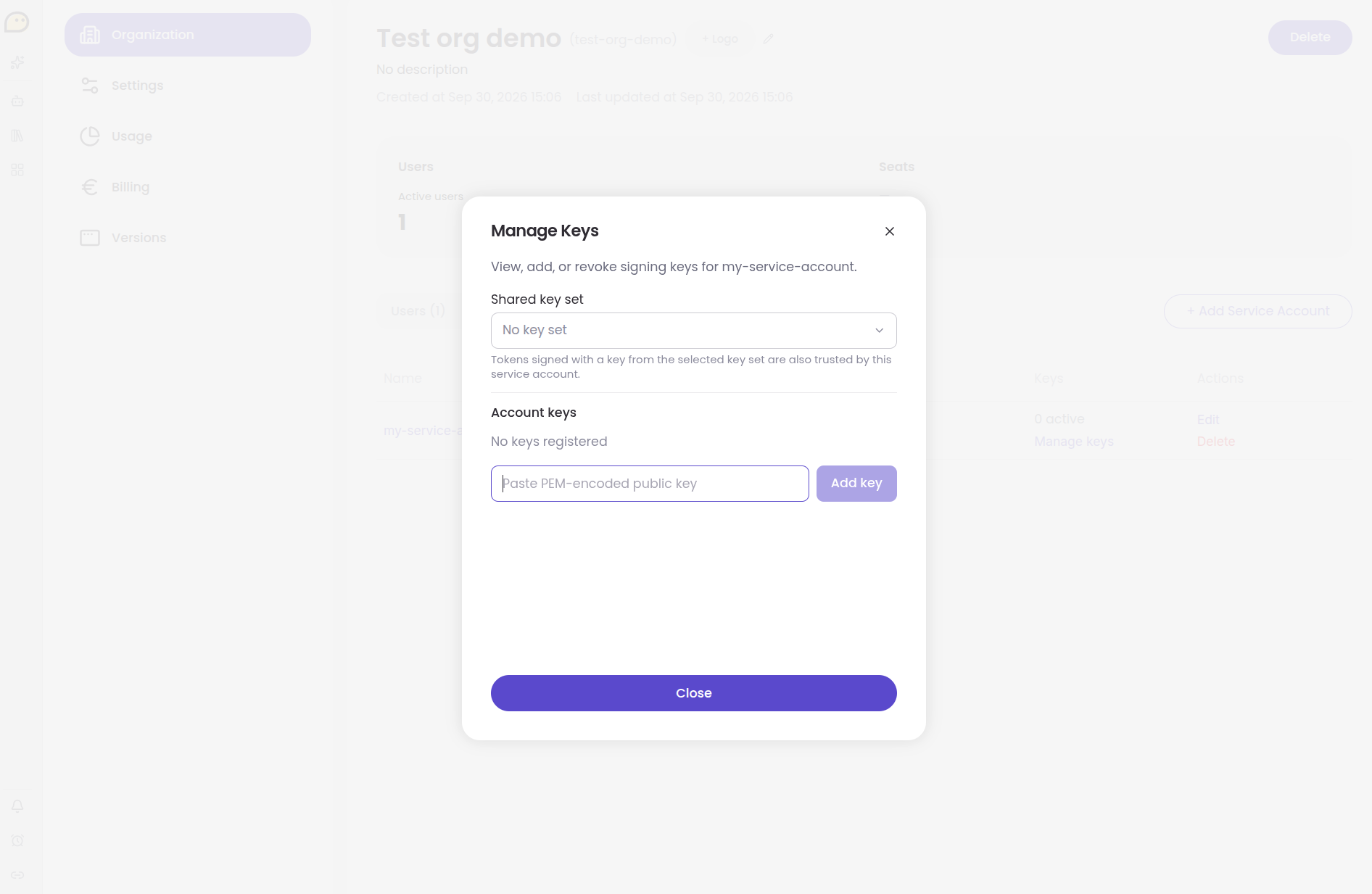
openssl genpkey -algorithm RSA -pkeyopt rsa_keygen_bits:2048 -out private.pemopenssl rsa -in private.pem -pubout -out public.pemThen, in the list, click Manage keys on the service account.
-
Under Account keys, paste the content of
public.pem(the whole PEM block, including theBEGINandENDlines). -
Click Add key. The key appears in the list as Active, with its key ID. This is the
SERVICE_ACCOUNT_KEY_IDyour server needs. -
Click Close.
Shared key set
Section titled “Shared key set”Instead of, or in addition to, its own keys, a service account can trust a shared key set: a named set of signing keys managed by the Nebulas platform administrators and shared across organizations. Select it in Shared key set. Tokens signed with any key of that set are then accepted for this account. Leave it on No key set if you register your own keys.
Rotate or revoke a key
Section titled “Rotate or revoke a key”To rotate a key, add the new public key, deploy the new private key and key ID on your server, then click Revoke on the old key. A revoked key stays in the list with its revocation date, and tokens signed with it are rejected.
Give the account access
Section titled “Give the account access”A service account only sees what is shared with it, like any other member. Share the workspace your application records conversations in, and the assistants and knowledge bases it uses, with the service account. In the sharing dialogs, search for it by name or email.
Use it in your application
Section titled “Use it in your application”Put the values in your server’s environment:
NEBULAS_AUTH_STRATEGY=service_accountSERVICE_ACCOUNT_ID=<the account ID>SERVICE_ACCOUNT_KEY_ID=<the key ID>SERVICE_ACCOUNT_PRIVATE_KEY="-----BEGIN PRIVATE KEY-----\n...\n-----END PRIVATE KEY-----"See Authentication strategies for the Nebulas Kit configuration and Environment variables for the full list.
Edit or delete a service account
Section titled “Edit or delete a service account”Use Edit in the list to change the account’s name, email, metadata, permissions, source type or role. Delete removes the account: any server still using it stops working immediately.