
Using Nebulas Workspace
A workspace is where you work in Nebulas. It holds your conversations and the assistants, knowledge bases and data tables selected for it. It is also the access boundary: the people you share a workspace with can use what it contains. Everything you build in Studio ends up in a workspace: assistants answer your questions, widgets appear in the thread, and tasks post their results.
Your workspaces
Section titled “Your workspaces”The home page lists your workspaces. The tabs at the top switch between My workspaces, Pinned items and All, and the search box finds a workspace by name.
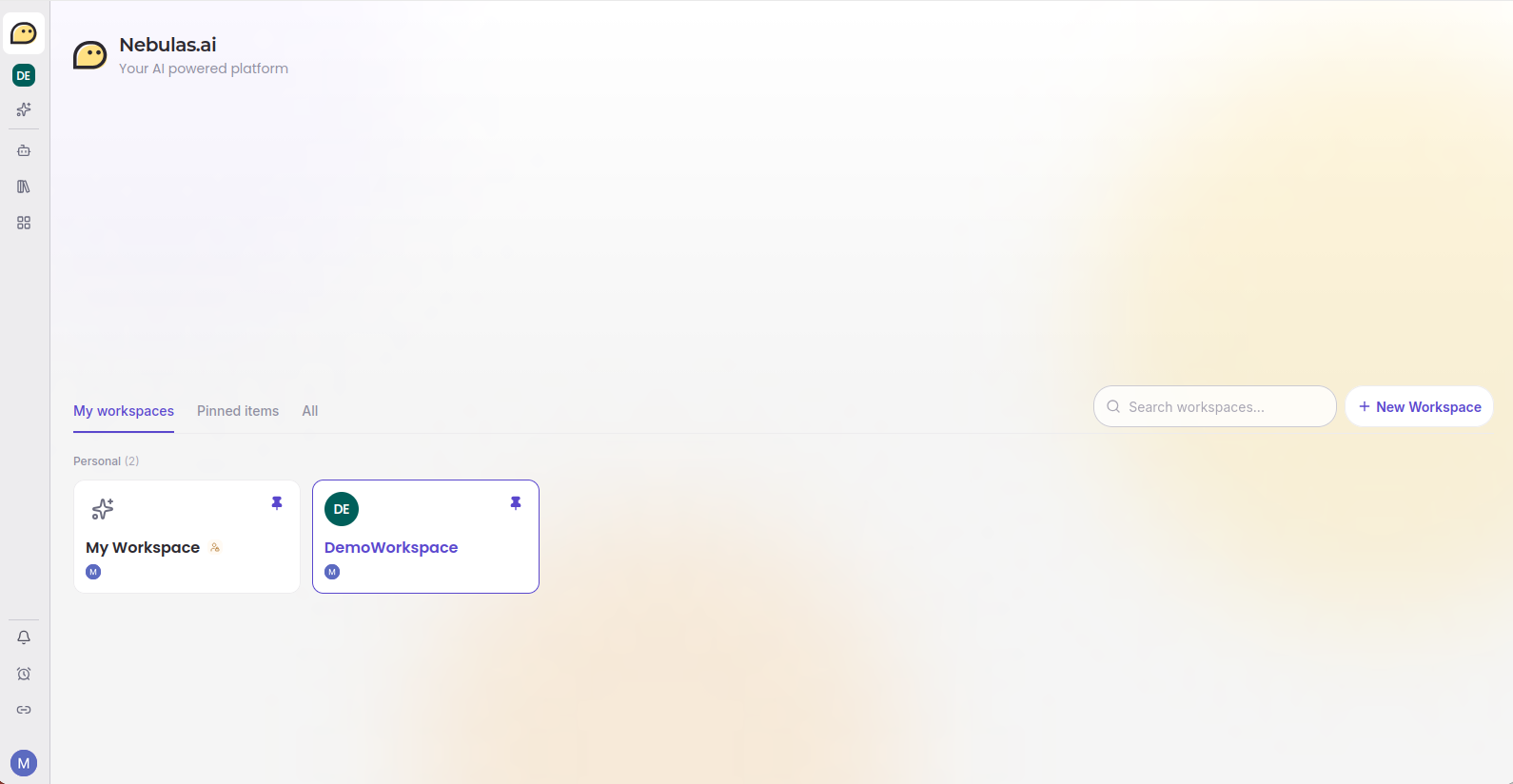
My Workspace, your personal workspace
Section titled “My Workspace, your personal workspace”Every user has a default workspace called My Workspace. It is personal: it is only yours and can’t be shared. Use it to try things out, chat with assistants on your own files, and prepare work before you bring it to a team.
Create a workspace
Section titled “Create a workspace”-
On the home page, click New Workspace.
-
Give it a name that says what it is for, such as Sales team or Q4 tender.
-
Open the workspace and add the assistants and knowledge bases it needs.
Pin the workspaces you use most to keep them at the top of the list.
Share a workspace with your team
Section titled “Share a workspace with your team”A workspace you create is private until you share it. To give other people access:
-
Open the workspace.
-
Open the workspace options menu and choose to share it, or click the member faces on the workspace page.
-
Add people or a whole team, and pick their role: Viewer, Editor or Owner.
The workspace then appears for them under Shared with me, and its assistants, knowledge bases and conversations become available to them according to their role. Sharing with a team rather than with each person keeps access up to date as people join or leave the team.
The layout
Section titled “The layout”- Sidebar. Your workspaces and conversation history. The picker at the top switches between workspaces. Below it, the workspace’s assistants, knowledge bases and members.
- Main area. The conversation. Answers stream in, with the sources they cite and the steps the assistant took.
- Right panel. Notes and other workspace apps, and the widgets an assistant shows you.
- Left rail. Chat, Assistants, Knowledge, Apps, Tasks, Market Place, and your connections, notifications and account.
Ask a question
Section titled “Ask a question”-
Pick a workspace, or start in My Workspace.
-
Type your question. To address a specific assistant, type
@and pick it. Without a mention, Nebulas chooses the assistant whose description fits best. -
Attach files or data if the answer depends on them. Files can also be added to a knowledge base afterwards.
-
Read the answer. Citations link to the passages used. You can copy it, give feedback, read it aloud, or add it to your notes or a knowledge base.
Widgets in the chat
Section titled “Widgets in the chat”Assistants can show interactive elements instead of plain text: a form to fill, a record card, a chart, a todo list, or a review card that asks you to approve or reject something before the assistant continues. These are the same widgets you can build in Studio and embed on your website with Nebulas Kit.
Group chats
Section titled “Group chats”A group chat is a shared thread for several people and assistants. It is available only in workspaces other than My Workspace, once the workspace is shared with at least one other member.
@to mention a person or an assistant. The assistant replies in the thread and remembers what was said in it.- Reply in a message’s thread, or attach a message as context to another conversation.
- Each assistant has a console per thread. Clearing it resets what the assistant remembers of the thread, without deleting the messages.
- Scheduled tasks can post their runs into a group chat.
Tasks from the chat
Section titled “Tasks from the chat”The Tasks page lists what this workspace runs on a schedule, with the status of the latest run. Create a task to have an assistant or a script run once or on a schedule, and get the result by email or in the group chat. A job chains several tasks. See Tasks.
Test an assistant
Section titled “Test an assistant”When you edit an assistant in Studio, the Test tab opens a chat with that assistant only. Use it to check its answers before publishing.